> For the complete documentation index, see [llms.txt](https://helpdocs.conducttr.com/llms.txt). Markdown versions of documentation pages are available by appending `.md` to page URLs; this page is available as [Markdown](https://helpdocs.conducttr.com/feature-documentation/designing-and-running/channels/monitoring-and-alerting-channels/social-watch.md).
# Social Watch
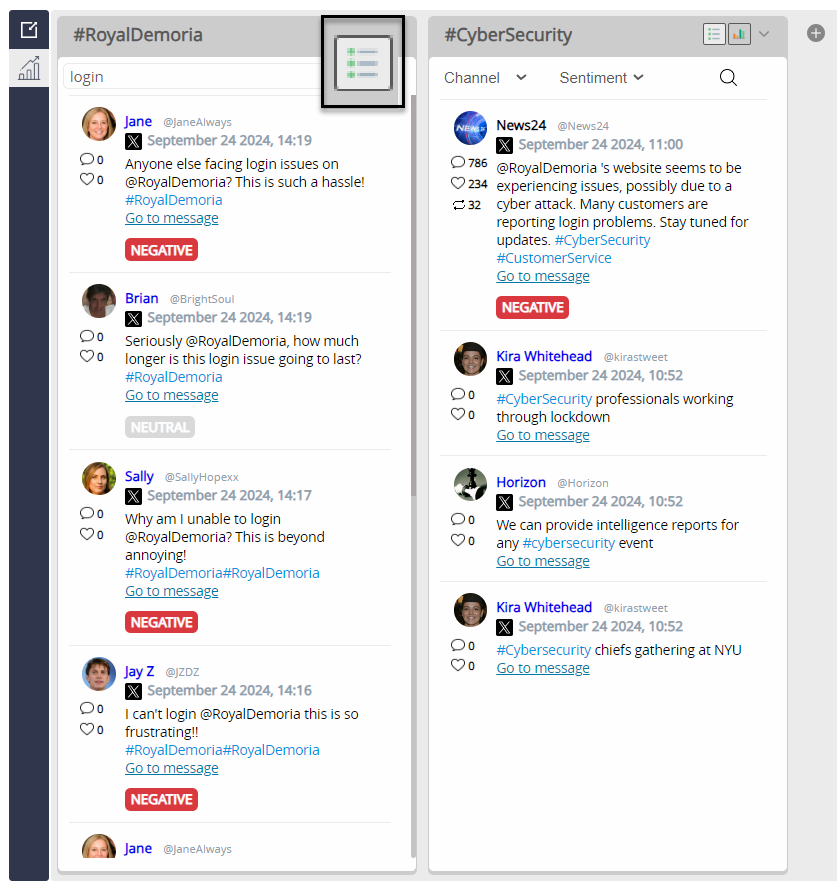
Social Watch is a dedicated channel that allows participants, role-players and exercise control to **monitor and analyse the conversation in social media channels**.
| Benefit | Feature |
| -------------------------------------------------------------------------------------------------------------------- | ------------------------------------------------------------------------------------------------------------------------------------------------------------------------------------------------------------------------------------------------ |
| Detect, visualise, and monitor conversations on social media |
Customisation of monitored terms/hashtags
Multi-channel monitoring
Column-based interface for independent visualisation of terms
Live sentiment analysis of each content (positive, neutral, negative)
|
| This can play a crucial role in crisis exercises, addressing reputational damage/countering disinformation campaigns |
Trending peaks graph
Influencer identification based on search terms
Word clouds for related phrases
|
## Running
### Setting up Social Watch
#### Add watchwords
1. Click the `+` icon and type the term you want to monitor across social media
{% hint style="info" %}
To add additional columns click the + icon again
{% endhint %}
2. Either type a term or select one from the drop-down
3. Click `Add` to add this term
{% hint style="info" %}
You can use AND and OR operators for advanced watchwords:
* Virus AND vaccine
* Virus OR vaccine
{% endhint %}
#### Set up alerts
When adding a new column, after selecting the watchword, turn on the switch for Trending alert, then customise the trending criteria.
When the trending criteria are met, an alert pop-up window wil appear.
### Filter and search
Each column can be filtered by channel and by sentiment:
Click on the magnifying glass in each column to search for specific words in each watchword feed:
### Creating and monitoring metrics
#### Generate word clouds
When in the expanded view, click on the cloud icon to generate a watchword-related word cloud. You can hover over each popular word to see the number of mentions.
#### Monitor influence
In each column, in the section *Authors*, you can list all authors (personas, role-players and any content contributor) that have used the watchword.
You can filter this view by channel and sort by the number of followers, following, messages, and alphabetically.
#### Research profiles
Click on any username in the Social Watch column (in blue), to open that persona profile.
Participants can research the nature of the profile by observing:
* Verified account
* Number of posts published
* User handle
* Bio
* Account creation date
* Posts (images, text and links to websites)
* Following and followers, which can be clicked to research each persona's social graph (if your license allows it)
### View in a range of immersive modes
There are two Social Watch views. Choose which metrics to display by selecting either the column or expanded view.
#### Metrics insight
Access this view by clicking the bar graph button. This provides deeper insights into conversations around the team, showing metrics like sentiment analysis, trends, and post authors. You can get further details surrounding the term by changing to the expanded view, see below for more information on this.
#### Column view
Enables you to view all posts related to the selected term in a list, along with details on each post's influence, the poster, the channel used, and the sentiment.
#### Expanded view
To access the expanded view first ensure you have clicked the bar graph button, then you will have the option to expand.
Once the column is expanded this will give you a deeper insight into the metrics surrounding this conversation.
### Sentiment analysis
Conducttr will automatically identify and categorise content posted in your exercise social media. This will be tagged as negative (red), neutral (grey), and positive (green).
This allows participants to monitor specific watchwords and quickly assess the conversation sentiment. This is particularly useful during crisis simulations where the company brand is at stake: **reputational damage, user complaints, disinformation campaigns**, etc.
{% hint style="warning" %}
Note that Social Watch categorises live social media. Scripted social media that's in your Master Events List (MEL) or Pattern of Life (PoL) should be analysed inside the Editor before publishing.
{% endhint %}
***
## Designing
### Configuration (How to)
#### Sentiment
To get the most from Social Watch, provide social media posts with sentiment.
To do this in bulk via the Master Events List (MEL) or Pattern of Life (PoL) stack, click the :thumbsup: button to analyse and identify social media posts' sentiments.
{% hint style="info" %}
The sentiment analysis is only on the content text, it doesn't understand irony or context. You may therefore need to tweak individual content sentiment to have the desired effect in the exercise.
{% endhint %}
Individual sentiments can be adjusted directly by clicking on the sentiment and selecting from the drop-down list:
#### Preconfigure columns
You can preconfigure Social Watch columns for players in the Editor under `Configuration` > `Channels` > `Social Watch`. Select `+ Add column`:
---
# Agent Instructions
This documentation is published with GitBook. GitBook is the documentation platform designed so that both humans and AI agents can read, navigate, and reason over technical content effectively. Learn more at gitbook.com.
## Querying This Documentation
If you need additional information that is not directly available in this page, you can query the documentation by asking a question.
Perform an HTTP GET request on the following URL with the `ask` and `goal` query parameters:
```
GET https://helpdocs.conducttr.com/feature-documentation/designing-and-running/channels/monitoring-and-alerting-channels/social-watch.md?ask=&goal=
```
`ask` is the immediate question: it should be specific, self-contained, and written in natural language.
`goal` is what the user is ultimately trying to achieve, the reason they need the answer. Sharing it helps GitBook give you a better, more relevant answer. A goal is most helpful when it describes the outcome the user wants rather than restating the question. For example, with `ask=how do I create an API token`, a goal like `automate deployments from our CI pipeline` lets GitBook tailor the answer to that use case.
The response will contain a direct answer to the question and relevant excerpts and sources from the documentation.
Use this mechanism when the answer is not explicitly present in the current page, you need clarification or additional context, or you want to retrieve related documentation sections.