Pulse

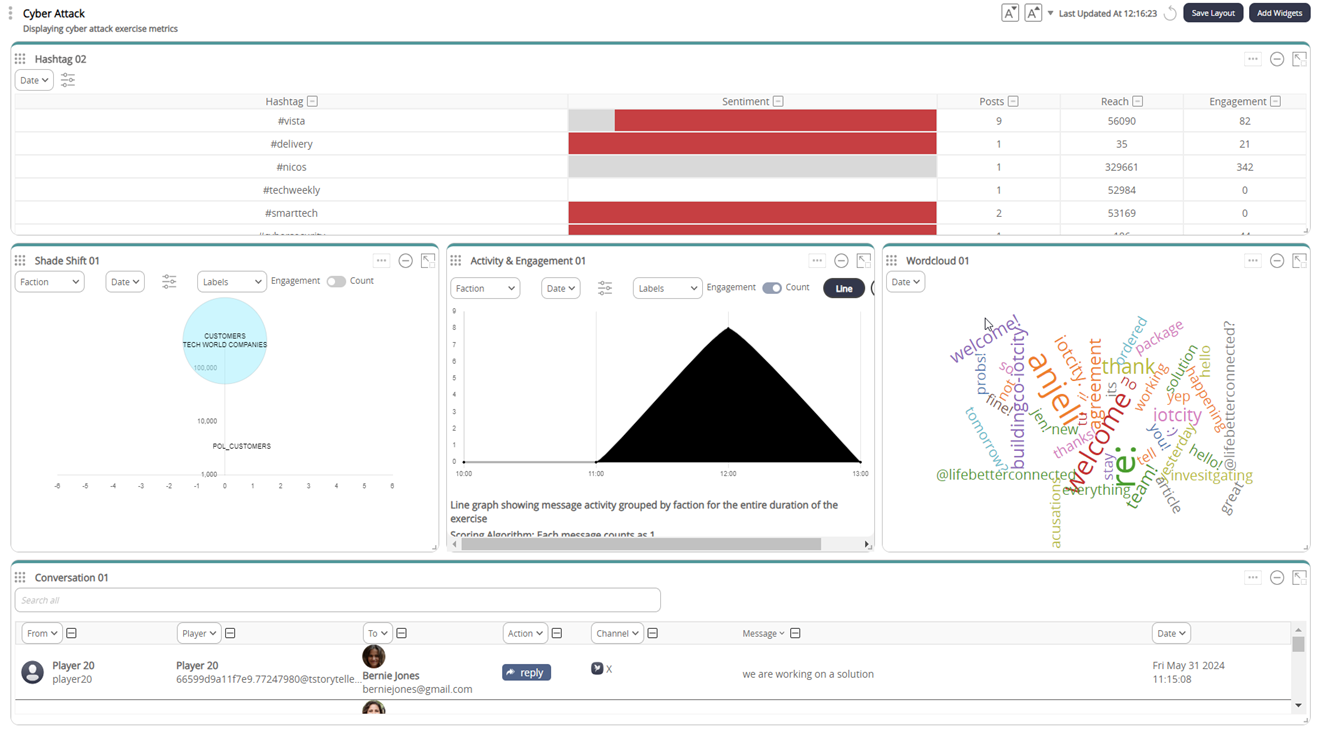
Pulse is a specialised, customisable dashboard that allows anyone in exercise control (facilitator and observers) to visualise what players are doing during a live exercise. Feel more in control of a live exercise because you can see player activity as it happens.

  • Feel more in control of a live exercise because you can see player activity as it happens

  • Provide better After-Action Review (AAR)

Dashboard

Locating your Pulse URL

Find your Pulse URL in the Facilitator Dashboard. Locate the document icon: here you will find your URL.

circle-info

This is your unique URL. It will display the metrics from the exercise that you uploaded to your space.

circle-exclamation

Create a dashboard

To create a dashboard, click on the Dashboards drop-down and select Create Dashboard. Enter a name for your dashboard, then click Create. To access your dashboard, click Dashboards again and select the one you just created.

You will know which dashboard you are using as the tiel will appear on the top left:

Widgets

Pulse is set up by adding widgets to a dashboard. You can either create a new widget or import an existing one.

circle-info

When configuring Pulse, you must click Save Layout to save your widget layout. This is found in the top right-hand corner of the dashboard.

Creating widgets

To create a widget click Add Widget > Create Widget. Once here, you'll have access to various widgets. Below you'll find descriptions of available widgets:

iFrame Widget

Unlike other widgets, the iFrame widget is not preconfigured for you. This widget allows you to embed the player screen (virtual desktop). There are various ways to utilise the iFrame widget, enabling you to tailor its use to meet your specific requirements.

Requirement
Description

View player's screen

While on the Pulse dashboard, exercise control (EXCON) may require visibility into the information environment (on the virtual desktop). The iFrame widget provides this capability, allowing you to view the relevant data without the need to open another tab in your browser

Display a channel

Utilise the iFrame widget to open a full-screen view of channels like InfoMap or Social Watch

Widget filters

Focus on the data that matters to you by using filters. This allows you to refine the information displayed, ensuring that you see only the relevant details while excluding any unnecessary data. By applying filters, you can customise your view to better suit your needs and enhance your overall experience with the dashboard.

Filter

From & To

Decide to show messages from certain personas

Channels

Only show metrics from selected channels

Actions

Filter the actions of the players and only record those (e.g. to record how many people liked a tweet/how many players commented on it)

Text Filter

Here you can filter by text/statement e.g. in the conversation widget you can see which players used the word 'protest' or 'boycott', or who wrote certain statements

Filter your widget by player / personas

The players/personas filter applies to the selected widget. E.g. if you choose the conversation widget, you can set to default filters for specific players/personas, rather than displaying everything initially and needing to narrow it down after loading the dashboard. This filtering lets you customise the dashboard from the start, instead of showing all data and having to sift through it to find what you need.

Quick Widget info

Widget
Description

iFrame

Used to embed a player virtual desktop (e.g. to then display InfoMap or Social Watch)

Ticketing

Used with the Help Desk channel to show responses to help tickets

Word cloud

Image in which the size of the word depends on the frequency of its use

Heatmap by Channel

Shows colour grid of social media channel activity

Heatmap by Persona

Shows colour grid of activity by player. Useful to identify the most active players

Disposition timeline

Timeline of count of acivity by persona disposition

Channel activity timeline

Timeline of count of activity by social media channel

Shade shift

Chart showing activity by reach (vertical) and disposition (horizontal). Ideal for seeing who is dominating the information space

Reach

Chart showing popular hashtags by sentiment, reach, engagement and count

Building your dashboard

Add widgets that are relevant to your exercise e.g. a word cloud may be relevant for a misinformation exercise.

Grab each widget by the top left to move them around, and expand/shrink the widgets by dragging the bottom right corners.

Collaborating in Pulse

  • Export dashboard: to export, click the three dots next to your dashboard. Here you will be presented with a drop-down, click Export.

  • Import dashboard: to import, click the Dashboard drop-down > Import Dashboard.

Using Pulse

circle-exclamation

Once live on the dashboard, the widgets can be additionally filtered by clicking the column filter drop-downs.

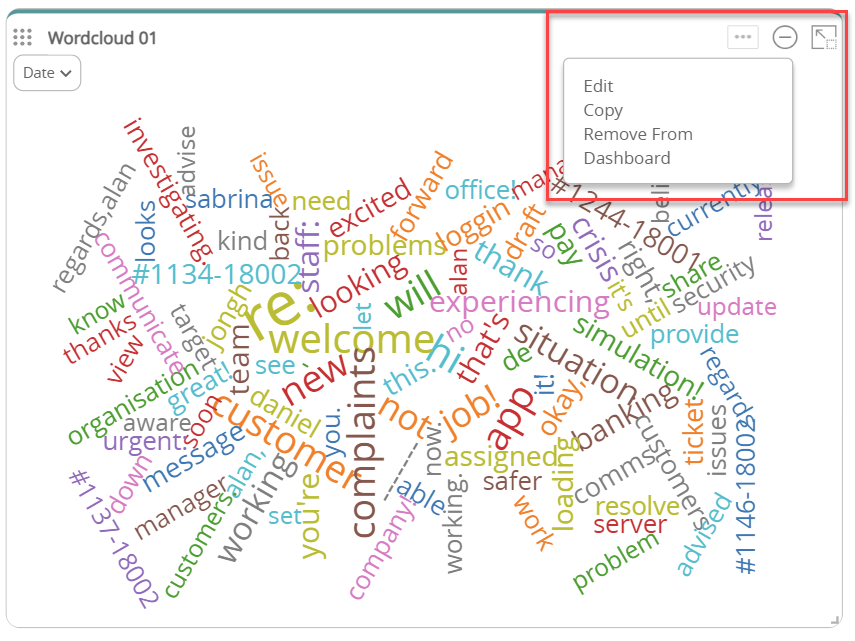
Every widget has three controls in the right-hand corner which allow you to:

  1. Edit, copy and remove from dashboard

  2. Minimise the filter bar

  3. Full screen

Last updated

Was this helpful?