> For the complete documentation index, see [llms.txt](https://helpdocs.conducttr.com/llms.txt). Markdown versions of documentation pages are available by appending `.md` to page URLs; this page is available as [Markdown](https://helpdocs.conducttr.com/colibri/reporting/exporting-results/colibri-report.md).
# Colibri Report
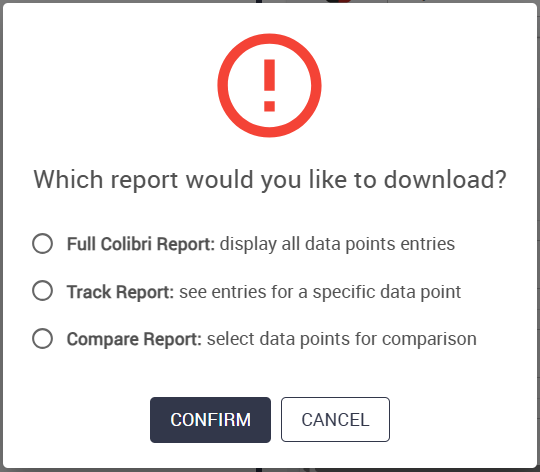
In the Colibri report, you can **export participant responses based on selected data points**. You can choose between:
| Report | What you get | Use when |
| ------------ | ----------------------------------- | ------------------------------------------------------------------------------------------------------------------------------------------------------------------ |
| Full Colibri | The full exercise data | You want a **general overview** of the exercise results |
| Track | Data from a specific checkpoint | You want to look specifically at **one data point** (e.g. a particularly important/difficult question) |
| Compare | Compare answers between two moments | You want to check for any **correlation between two different data points** (e.g. if participants selected their region, how might that effect how they answer x?) |
## How to
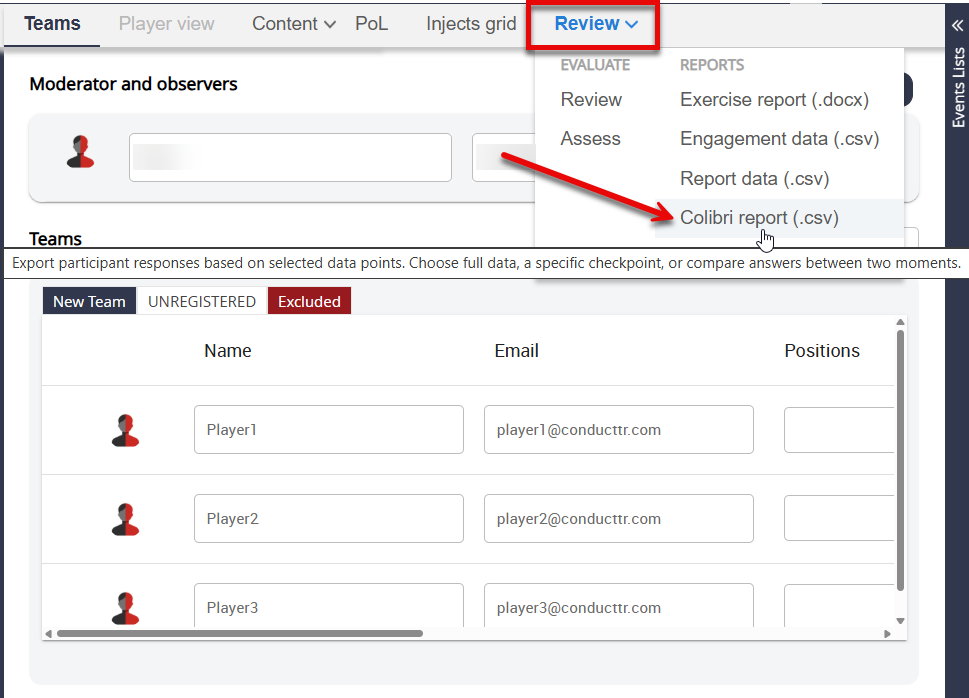
To export a Colibri report after running a self-paced exercise, navigate to the Facilitator Dashboard and open the `Review` tab:
You'll then be met with this window, which allows you to select which kind of Colibri report you would like to download:
### Full Colibri report
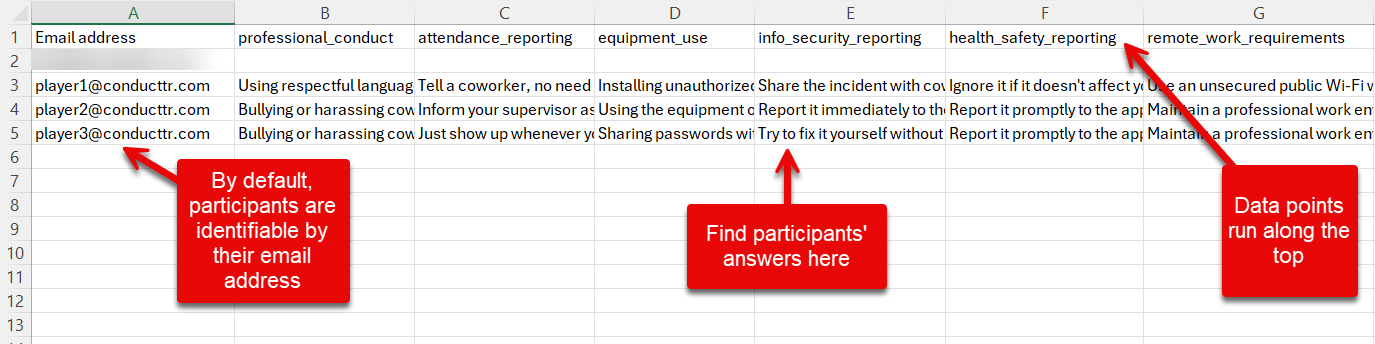
Download the full Colibri report when you're looking for a general overview of the exercise. Here's an example of what a full Colibri report looks like:
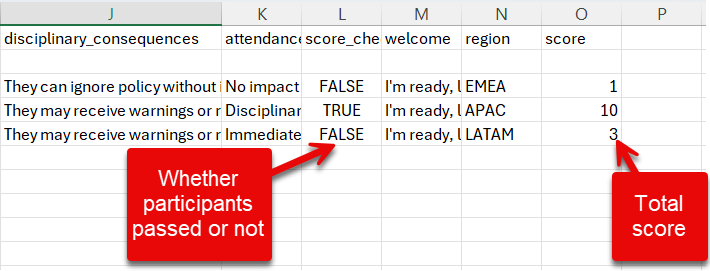
The generated spreadsheet gives you an easy-to-digest view of the exercise results, including:
* **Participant details** (this by default is their email address)
* **Data points** (questions)
* **Participant answers**
* Whether participants **passed or not**
* Participants' **total scores**
{% hint style="warning" %}
The "welcome" data point generally contains the first button participants will click in a default Colibri quiz. Check this to see which/how many participants started the exercise.
{% endhint %}
### Track report
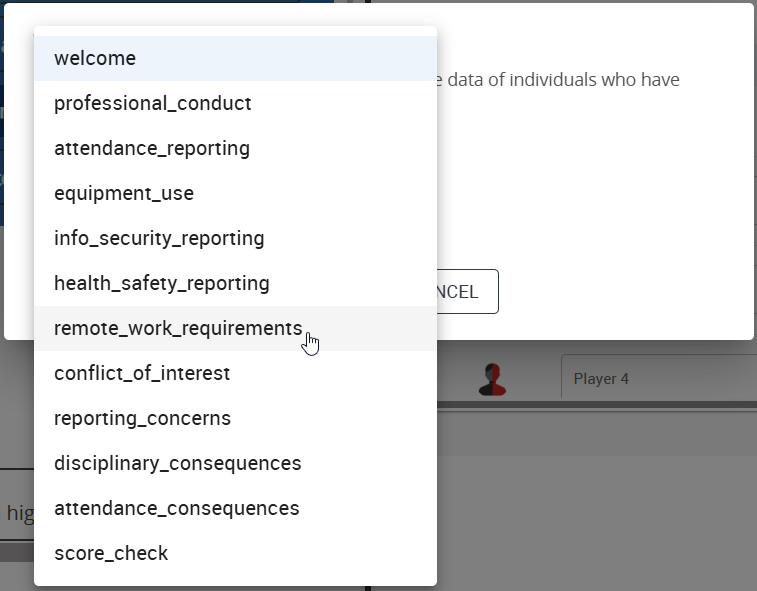
Download the track report when you want to compare participant answers for only one data point. After selecting track report, you can then choose the desired data point from a drop-down list:
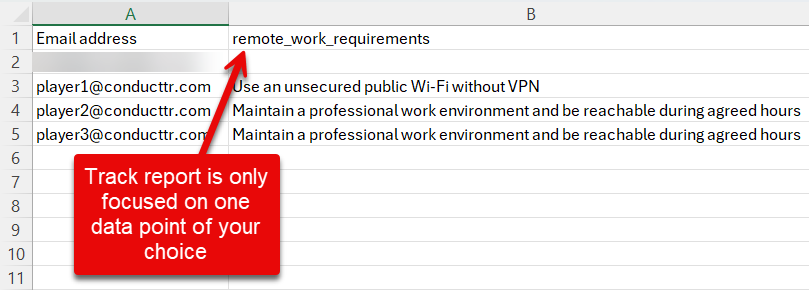
The generated spreadsheet gives you a quick view of the results from the specific question, including:
* **Participant details**
* Chosen **data point**
* **Participant answers**
### Compare report
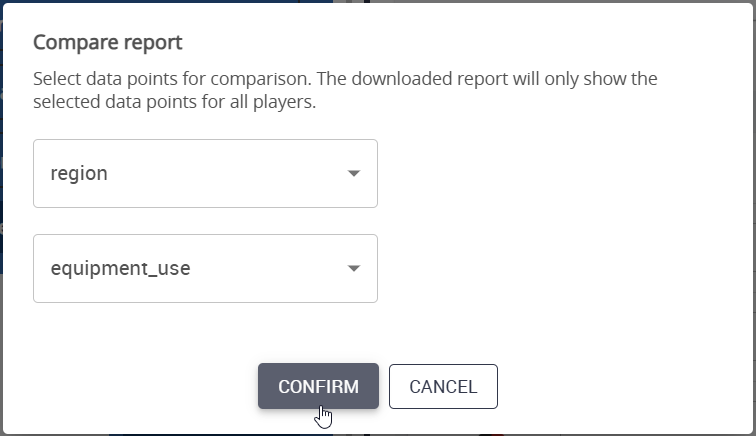
Download the compare report when you want to compare two data points in a single report. After selecting compare report, you can then choose the desired data points from two drop-down lists:
{% hint style="success" %}
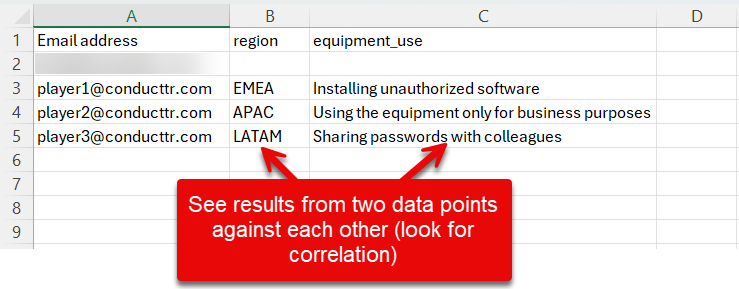
🎓 In this exercise, participants were asked what region they were in. Now we can compare participant answers against which region they're in to see if there's any correlation.
{% endhint %}
The generated spreadsheet gives you a split view of two different data points for comparison purposes, including only:
* **Participant details**
* Two **data points** of your choice
* **Participant answers**
---
# Agent Instructions
This documentation is published with GitBook. GitBook is the documentation platform designed so that both humans and AI agents can read, navigate, and reason over technical content effectively. Learn more at gitbook.com.
## Querying This Documentation
If you need additional information that is not directly available in this page, you can query the documentation by asking a question.
Perform an HTTP GET request on the following URL with the `ask` and `goal` query parameters:
```
GET https://helpdocs.conducttr.com/colibri/reporting/exporting-results/colibri-report.md?ask=&goal=
```
`ask` is the immediate question: it should be specific, self-contained, and written in natural language.
`goal` is what the user is ultimately trying to achieve, the reason they need the answer. Sharing it helps GitBook give you a better, more relevant answer. A goal is most helpful when it describes the outcome the user wants rather than restating the question. For example, with `ask=how do I create an API token`, a goal like `automate deployments from our CI pipeline` lets GitBook tailor the answer to that use case.
The response will contain a direct answer to the question and relevant excerpts and sources from the documentation.
Use this mechanism when the answer is not explicitly present in the current page, you need clarification or additional context, or you want to retrieve related documentation sections.