> For the complete documentation index, see [llms.txt](https://helpdocs.conducttr.com/llms.txt). Markdown versions of documentation pages are available by appending `.md` to page URLs; this page is available as [Markdown](https://helpdocs.conducttr.com/feature-documentation/designing-and-running/channels/collaboration-based-channels/msngr-plus.md).
# Msngr Plus
Msngr Plus is a collaboration channel similar to **WhatsApp**. It allows for live conversations between players as well as pre-planned injects from the MEL.
| Benefit | Feature |
| ------------------------------------------------------------------------------------- | ---------------------------------------------------------------------------------------------------------------------------------------------------------------------------------------------------------------------------------------------------------------------------------------------------------------------------- |
| Collaborative messaging allows players to work in an exercise as they do in real life |
Group management
Players can message each other if they members of the chat group
Save draft messages
Share media and links
Ability to send pre-planned content as well as live messages
Impersonation and After Action Review (AAR) functions within this channel
|
## Running
Players can participate in group discussions and collaboration in much the same way as they can with Slack and WhatsApp.
### Adding media
Attach media to your chats by clicking the paperclip icon next to the chat box:
You then have the option to attach a URL, a file saved locally or use your camera.
### Creating group chats
{% hint style="info" %}
Msngr Plus group chats are separate to groups in Conducttr. Groups are used for dynamic content publishing.
{% endhint %}
All players will automatically be added to a *General* group chat which includes everyone in the exercise. You can also create specific groups live by following the instructions below.
{% stepper %}
{% step %}
#### Click the group chats icon and set name
Click the blue group chat icon found at the top of your chats to create a new group.
Give your group chat a name (and an image if you wish). Then click the blue tick.
{% endstep %}
{% step %}
#### Add group chat members
Decide who you want to add to the group chat. When finished, click the next button.
{% hint style="warning" %}
In the list you'll only see players and personas who are already added to another Msngr Plus group chat. This is determined by the designer.
{% endhint %}
{% endstep %}
{% step %}
#### View group chat
You have now created a group chat!
{% endstep %}
{% endstepper %}
### Managing pre-defined group chats
If the permission is configured in the Editor then players have the ability to leave groups.
During the exercise, players preassigned as Admins can:
* Add and remove players from predefined group chats
* Edit the predefined group chat images and names
***
## Designing
### Group chats configuration
{% hint style="warning" %}
For players to use Msgnr Plus group chats (that aren't the default *General*) they must be preassigned to the group chat in the Editor by either:
* A **matching persona**
* A **position**
{% endhint %}
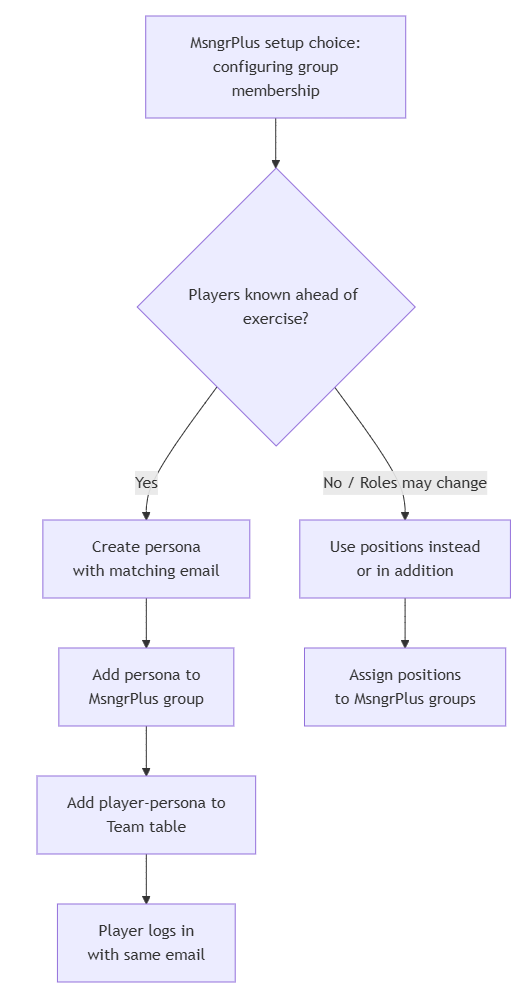
Group chat membership is persona-driven. Hence, even though you'll want players in the group in addition to personas, you'll need to add players by having them **match a persona** (i.e. use the same email address) or **assign the player a position**.
#### 🔀Matching persona vs position
The choice of matching persona vs position is determined by the intricacies of the groups that players need to be belong to and how many there are.
**Matching persona**
In this example, the player who logs in with the email address will assume the identity of the persona Leslie Green and will be in the message groups *#general* and *#incident-response*.
**Position**
In the example below, when the player Charlie logs in to the exercise he'll be in the Msngr Plus groups *#general* and *#incident-reponse* because the IT Lead position has been assigned to him in the teams table.
Alternatively, Beth will only be in the *#general* group as she's a player without a corresponding position or a matching persona.
{% hint style="success" %}
Groups act as their own entities regardless of teams and positions e.g. if you have two players in different teams and/or positions they can still be added into the same group.
{% endhint %}
**Admins**
Admins function just as they would in popular messaging apps like WhatsApp. Assigning personas or positions as Admin permits them to add and remove group members, as well as editing the group chat image and name, live in the exercise.
Personas or positions assigned as Admin are marked in blue.
{% hint style="info" %}
To find out more about matching personas and positions, visit the pages below:
{% endhint %}
{% content-ref url="/pages/sP1Q6uHHQCXjoOPm6RuB" %}
[Positions and Special Permissions](/feature-documentation/designing-and-running/facilitation/facilitator-dashboard/positions-and-special-permissions.md)
{% endcontent-ref %}
---
# Agent Instructions
This documentation is published with GitBook. GitBook is the documentation platform designed so that both humans and AI agents can read, navigate, and reason over technical content effectively. Learn more at gitbook.com.
## Querying This Documentation
If you need additional information that is not directly available in this page, you can query the documentation by asking a question.
Perform an HTTP GET request on the following URL with the `ask` and `goal` query parameters:
```
GET https://helpdocs.conducttr.com/feature-documentation/designing-and-running/channels/collaboration-based-channels/msngr-plus.md?ask=&goal=
```
`ask` is the immediate question: it should be specific, self-contained, and written in natural language.
`goal` is what the user is ultimately trying to achieve, the reason they need the answer. Sharing it helps GitBook give you a better, more relevant answer. A goal is most helpful when it describes the outcome the user wants rather than restating the question. For example, with `ask=how do I create an API token`, a goal like `automate deployments from our CI pipeline` lets GitBook tailor the answer to that use case.
The response will contain a direct answer to the question and relevant excerpts and sources from the documentation.
Use this mechanism when the answer is not explicitly present in the current page, you need clarification or additional context, or you want to retrieve related documentation sections.